If your Uplift V2 Bluetooth keypad not connecting issue is driving you crazy in 2026, the fix is usually simpler than you think. In most cases, the problem stems from a dead CR2032 coin-cell battery, an interrupted Bluetooth handshake after a firmware update, or 2.4 GHz interference from a nearby router or wireless mouse. Start by replacing the battery, then perform a factory reset on the keypad by holding the "M" and down-arrow buttons together for 10 seconds. Re-pair the keypad through the Uplift Desk app on your phone, and power-cycle the desk control box for 60 seconds to clear stale Bluetooth memory.
Why the Uplift V2 Bluetooth keypad refuses to pair
The Uplift V2 advanced keypad uses a small Bluetooth Low Energy (BLE) module that talks to both the desk control box under your desktop and the official Uplift Desk app. When pairing fails, it almost always comes down to one of five causes: a depleted CR2032 battery inside the keypad, outdated firmware on the control box, a phone that has cached an old pairing record, RF interference in the 2.4 GHz band, or a loose RJ-45 data cable between the keypad and the control box. Identifying which category you are in makes the difference between a five-minute fix and an afternoon of frustration.
A surprising number of pairing failures trace back to the battery. The CR2032 ships installed but partially drained from warehouse storage, and after 12 to 18 months of normal use the keypad will fail BLE pairing before it loses LCD brightness. If your screen still lights up but the Bluetooth icon flickers or fails to advertise, replace the battery before you try anything else.
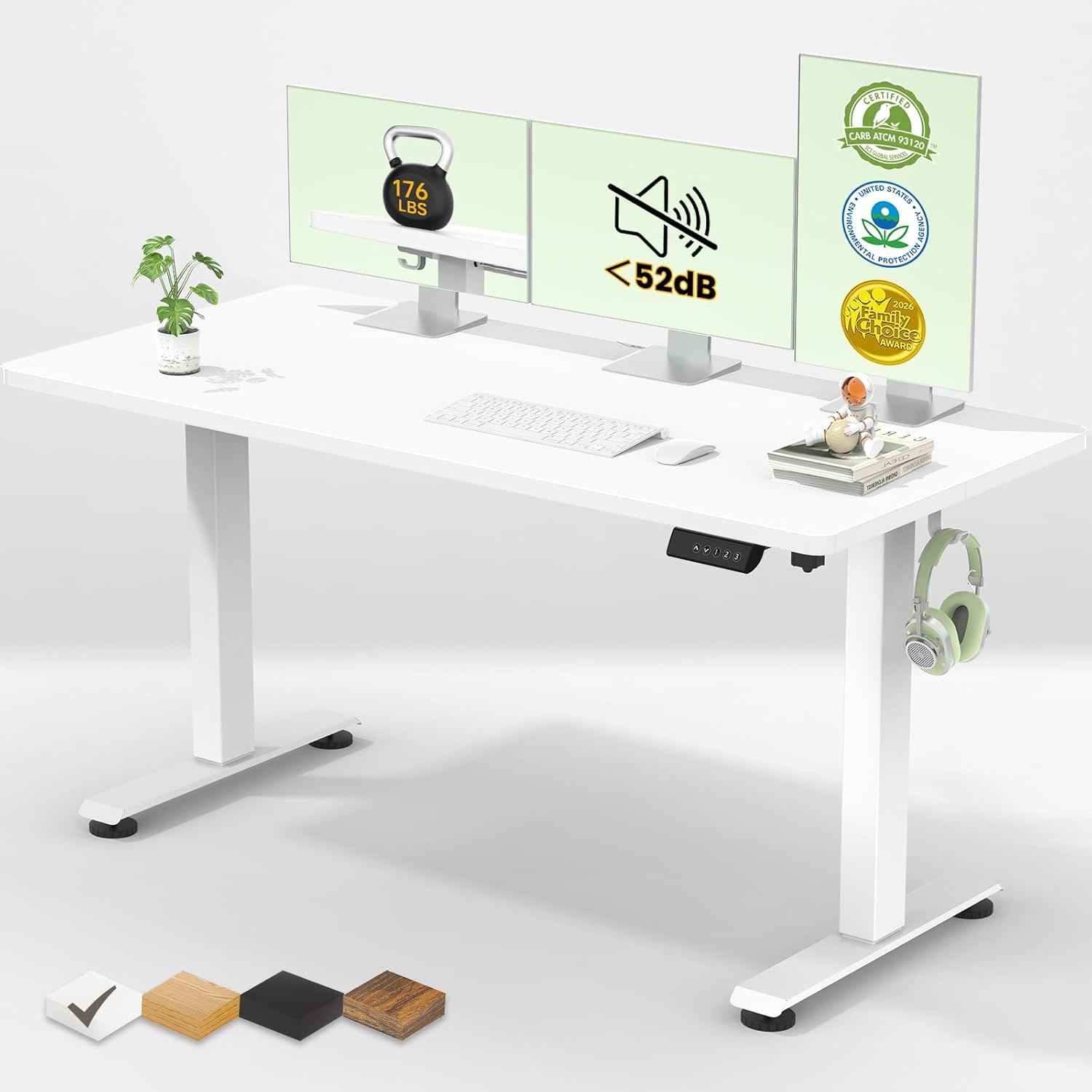
Step-by-step troubleshooting for the Uplift V2 Bluetooth keypad not connecting
Step 1: Replace the CR2032 coin-cell battery
Flip the keypad over, slide the small plastic cover off the battery compartment, and pop out the CR2032. Install a fresh one with the "+" side facing up. Use a name-brand cell (Energizer, Panasonic, or Duracell) — generic bulk batteries often ship at 2.7 V instead of the rated 3.0 V, which is enough to power the screen but not the BLE radio during pairing advertising.
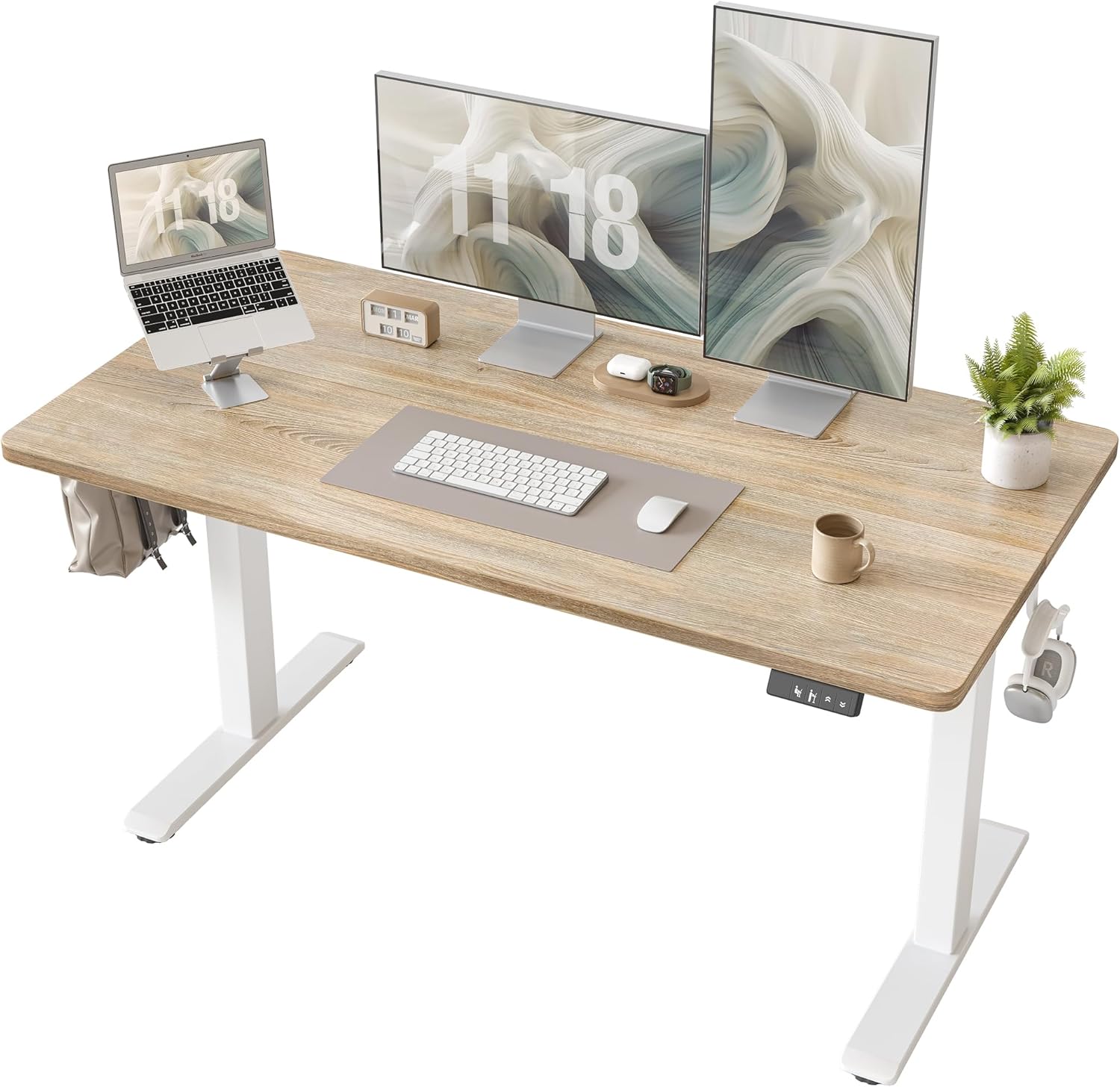
Step 2: Factory reset the keypad
With the battery installed, press and hold the "M" (memory) button and the down-arrow button at the same time for a full 10 seconds. The screen will display "RST" or briefly go blank. This wipes the existing Bluetooth pairing table inside the keypad and forces the BLE module to start advertising again. On older firmware revisions you may need to hold all four memory buttons simultaneously instead — Uplift changed the reset combo in mid-2024.
Step 3: Forget the keypad on your phone
Open Settings > Bluetooth on your iPhone or Android, find any entry labeled "UPLIFT," "JCB35N12" (the BLE module's chipset name), or "V2-Keypad," and tap "Forget Device." Then open the Uplift Desk app and remove any previously saved desk profile. Phones cache failed pairings aggressively, and the app will refuse to re-pair until the OS-level entry is cleared.
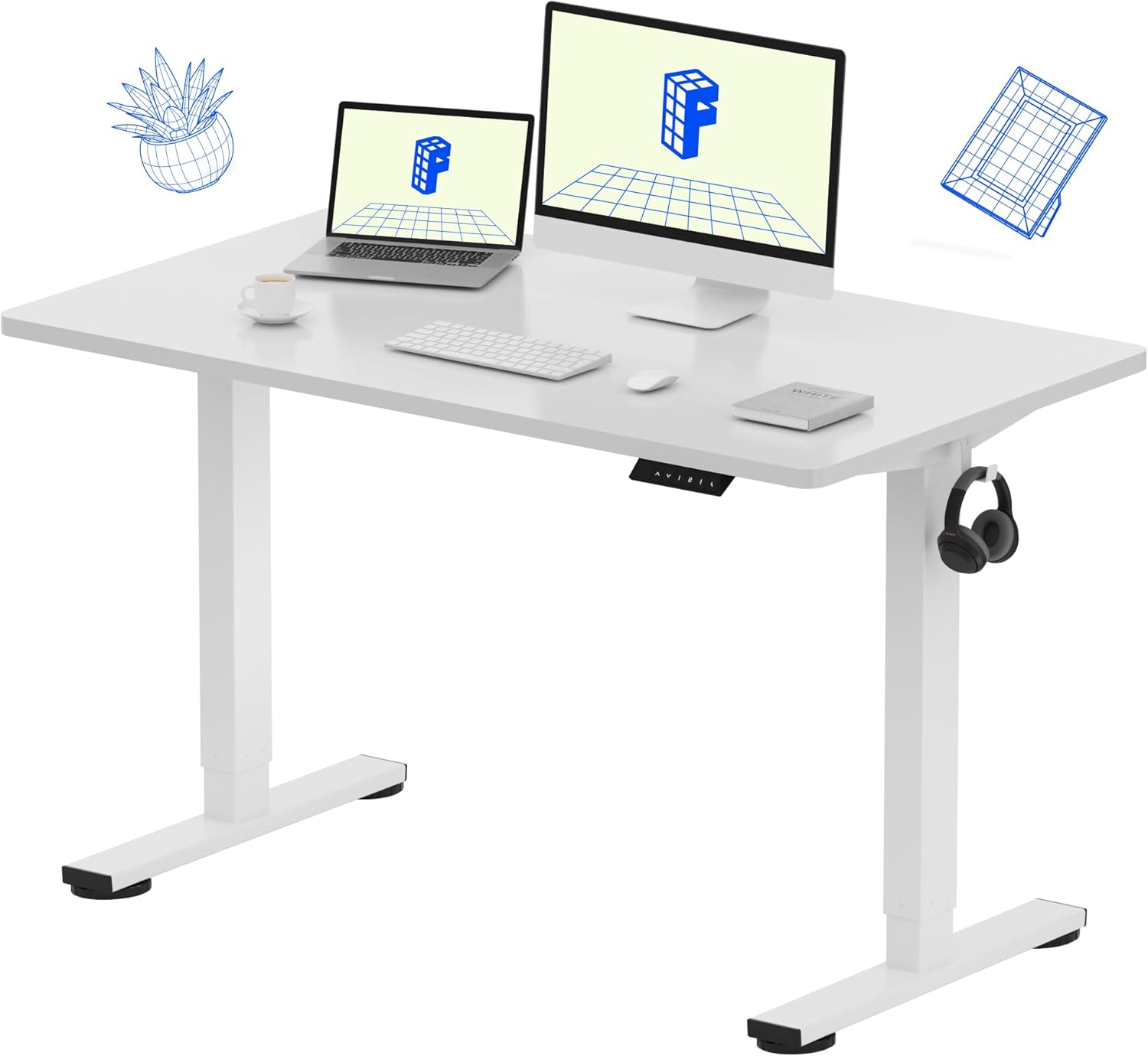
Step 4: Power-cycle the control box
Unplug the desk's main power cable from the wall for a full 60 seconds. The control box's BLE module retains its pairing state in volatile memory for roughly 30 seconds after power loss, so anything shorter will not clear it. While the desk is unplugged, also unplug the RJ-45 cable connecting the keypad to the control box and reseat it firmly — a partial connection causes intermittent BLE advertising that looks identical to a pairing failure.
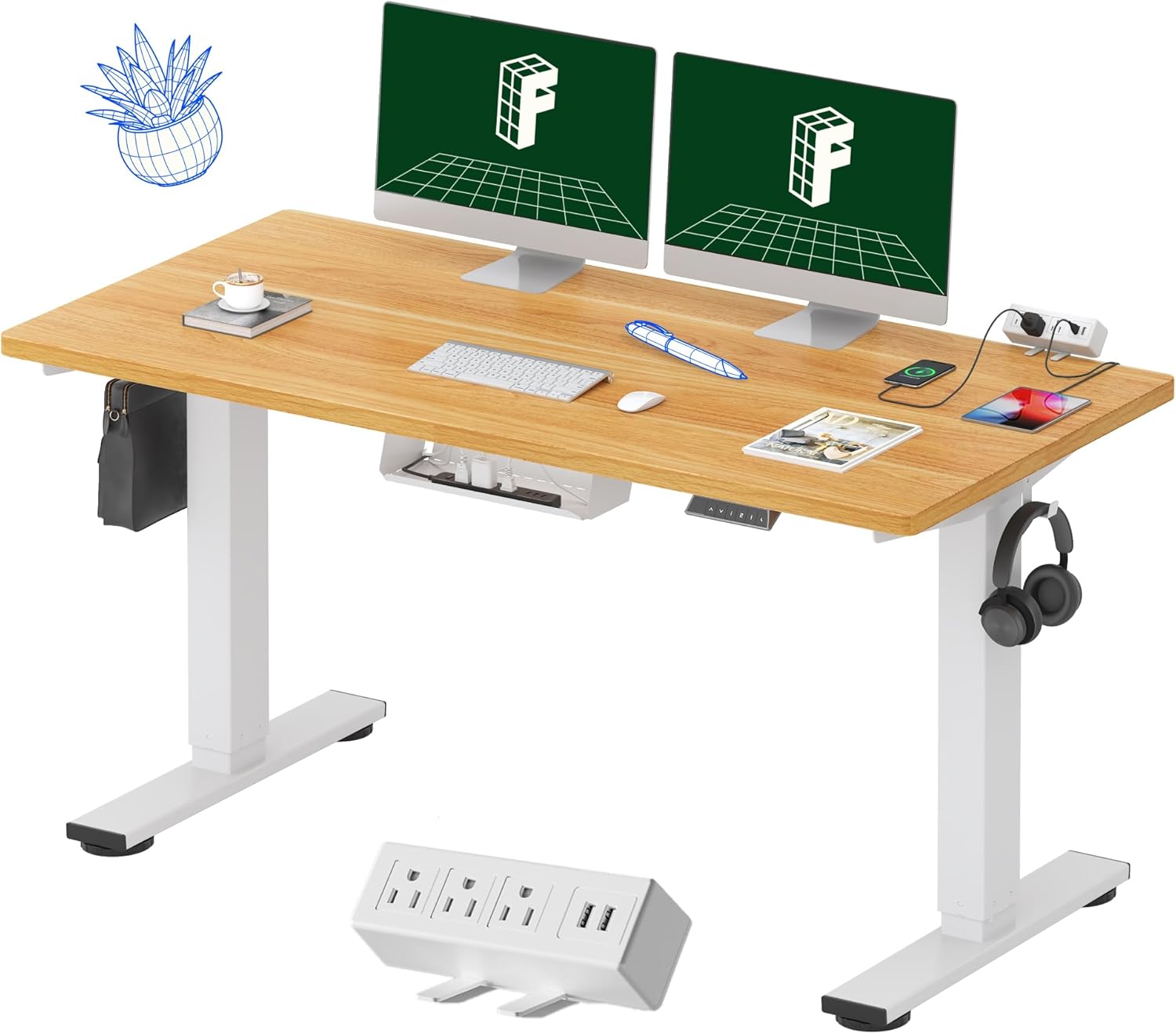
Step 5: Reduce 2.4 GHz interference
Bluetooth shares the 2.4 GHz band with Wi-Fi, Zigbee, and most wireless mice. If your router sits within three feet of the desk, temporarily move it or switch your phone to a 5 GHz Wi-Fi network during pairing. Logitech Unifying receivers and many cheap USB wireless dongles are notorious for blanketing the band — unplug them while you pair.
Step 6: Re-pair via the Uplift Desk app
Open the app, tap "Add Desk," and follow the prompts. The keypad screen should display a six-digit code; enter it in the app within 30 seconds. If pairing still fails after all six steps, the BLE module on the keypad PCB has likely failed and Uplift will warranty-replace the unit if it is under five years old. Contact their support team with the serial number printed on the underside of the control box.
When the Uplift V2 Bluetooth keypad not connecting issue means it is time for a new desk
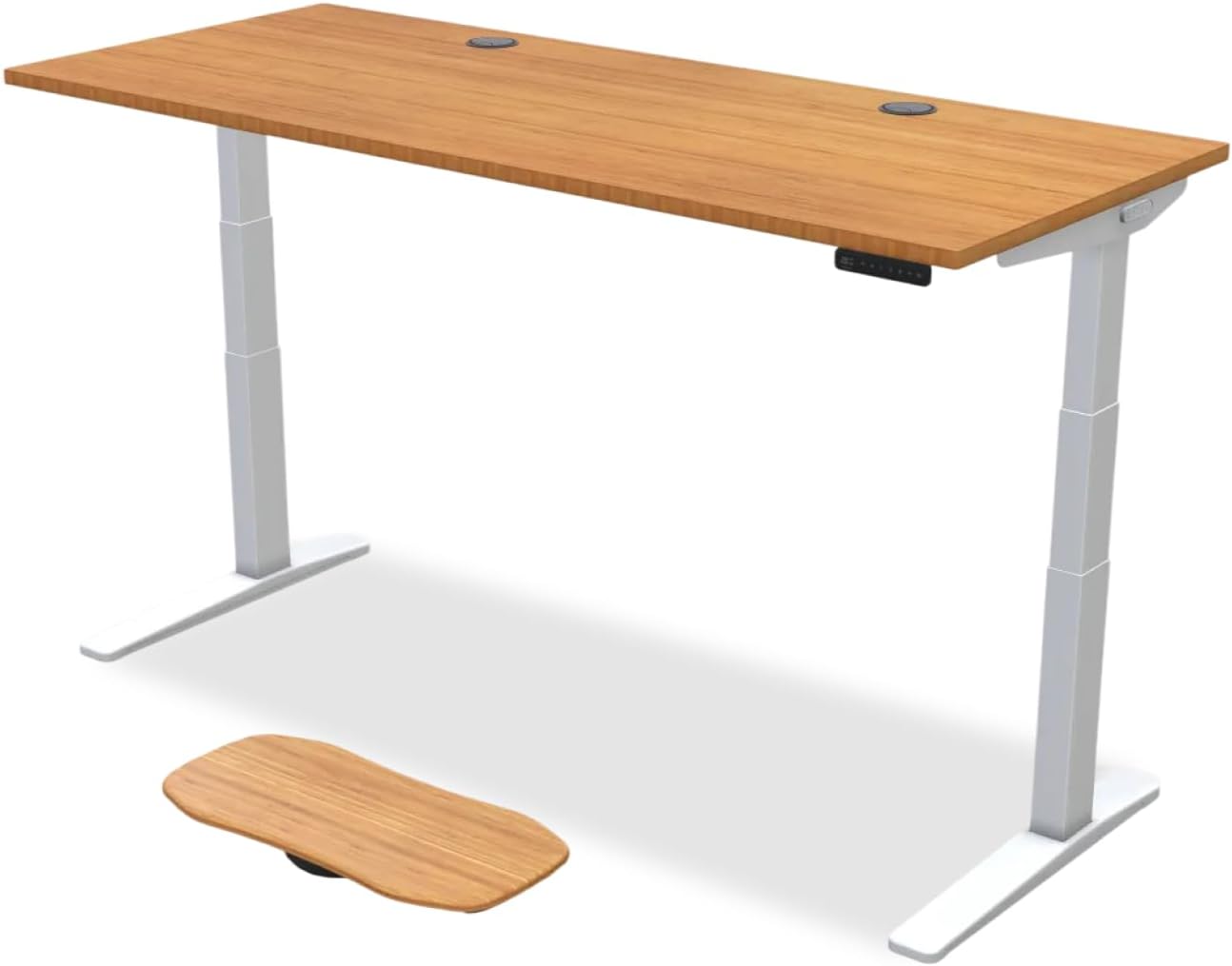
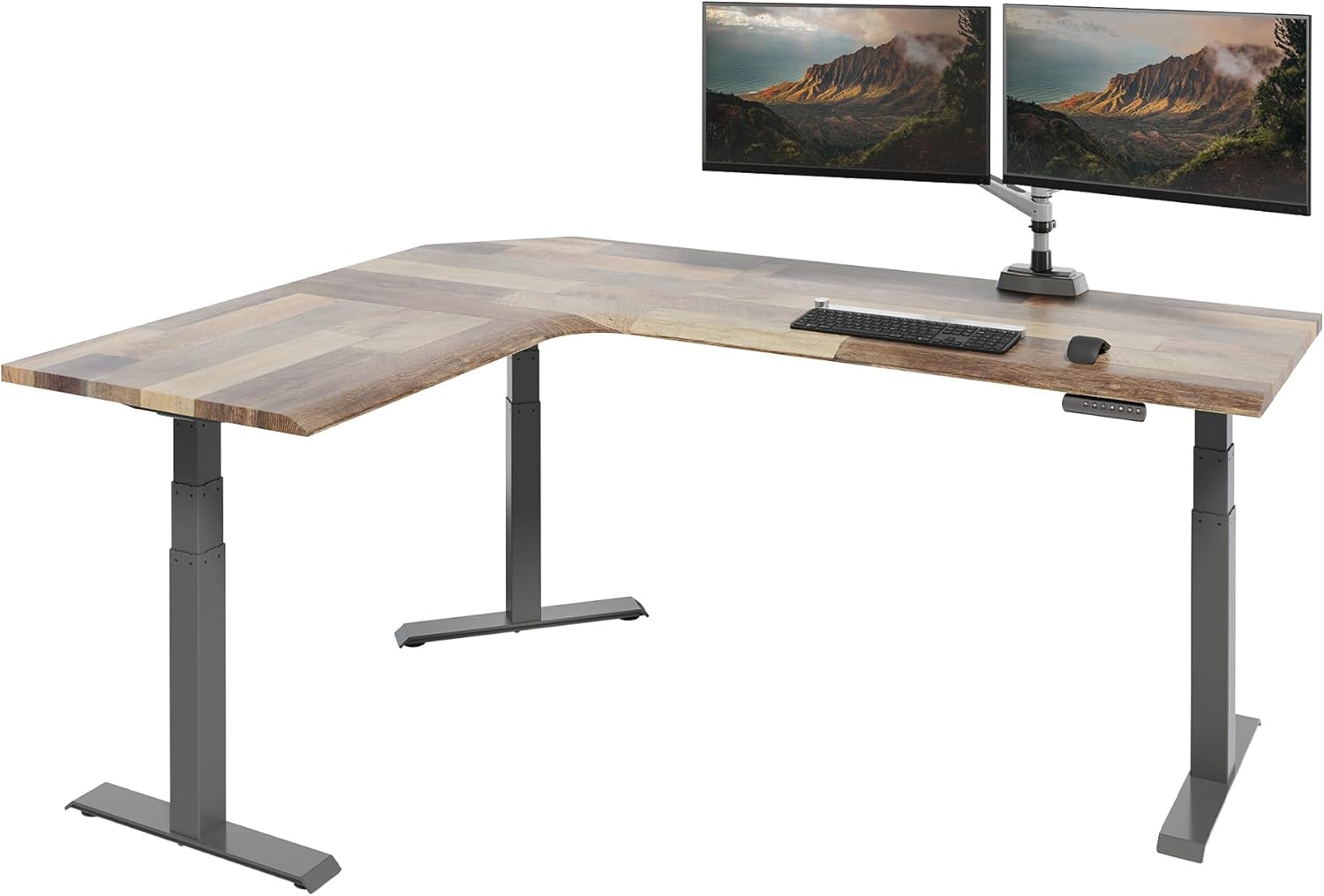
If your Uplift is more than seven or eight years old and the keypad failure is just the latest in a string of issues — motor stuttering, anti-collision misfires, height drift — a replacement keypad alone may not be worth the cost. A new advanced comfort keypad from Uplift runs $99, and that money goes further toward an entirely new desk from a competitor with comparable specs. Below are three desks worth considering as a full-system replacement, all with reliable wired keypads (no Bluetooth headaches) and memory-height presets. See our best standing desks under $500 guide for additional picks.
| Desk | Size | Weight Capacity | Memory Presets | Keypad Type |
|---|---|---|---|---|
| VIVO Electric 60 x 24 | 60" x 24" | 220 lbs | 4 | Wired LED |
| Veken 47.2" Standing Desk | 47.2" x 23.6" | 176 lbs | 4 | Wired LED |
| ErGear 48 x 24 Sit-Stand | 48" x 24" | 176 lbs | 4 | Wired LED |
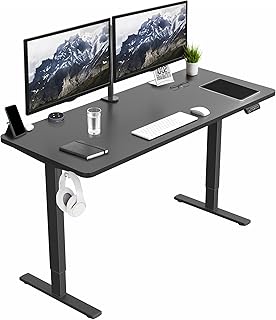
VIVO Electric 60 x 24 in Standing Desk — Best Direct Uplift Replacement
The VIVO 60-inch is the closest spec match to a v2-Commercial Uplift in terms of width, lift capacity, and stability. It holds 220 pounds, runs a dual-motor lift, and crucially uses a wired LED keypad with four memory presets — no Bluetooth pairing required, no app updates that break things, no CR2032 to replace. If you have been fighting your Uplift's BLE module and just want a desk that works, this is the pragmatic choice. Check the latest price on Amazon.
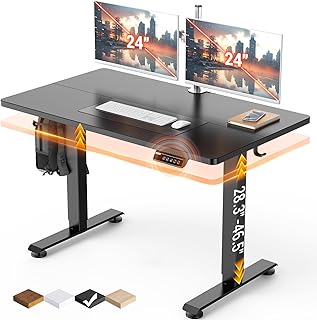
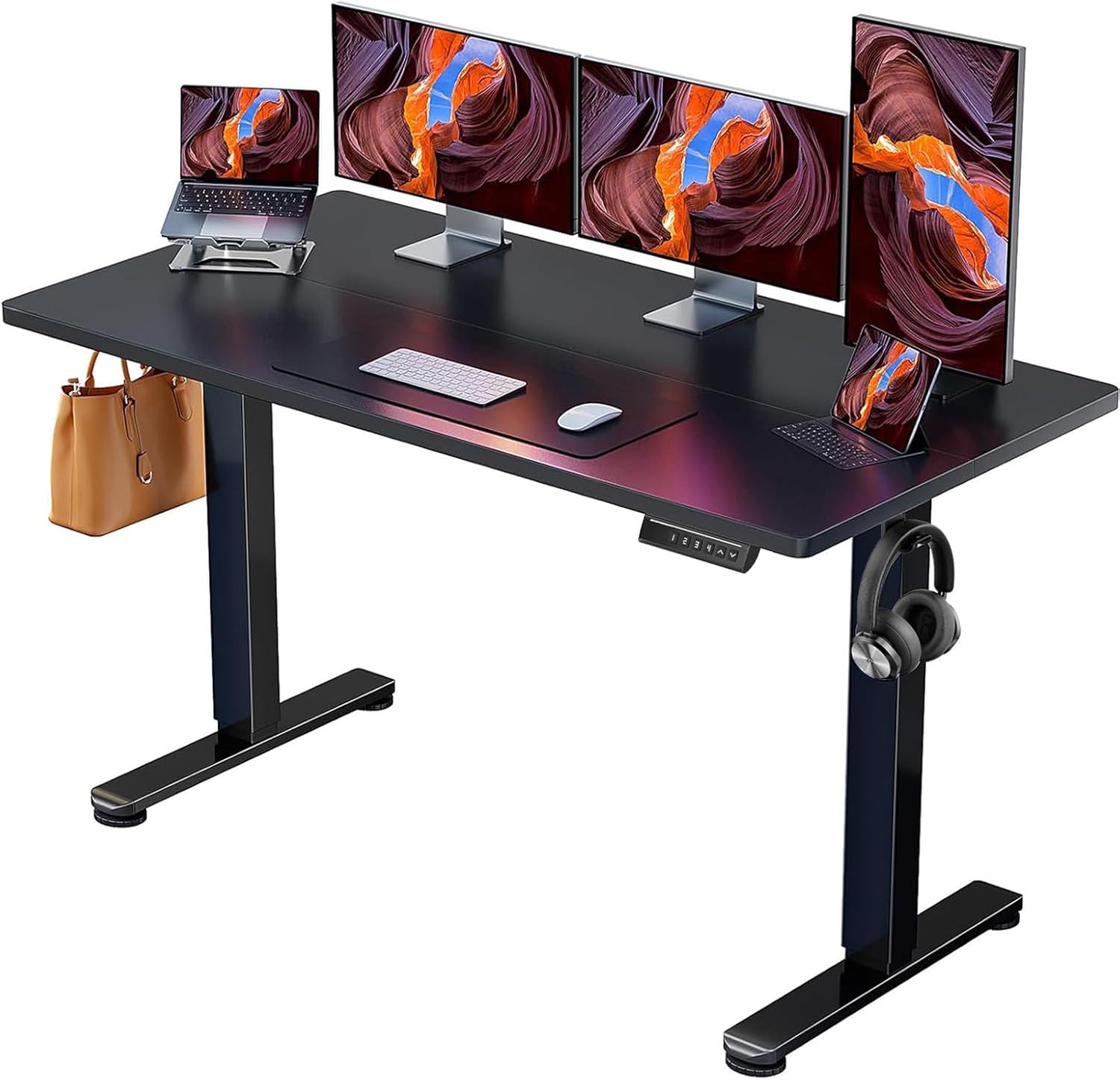
Veken 47.2" Standing Desk — Best Compact Option with Wood Top
For home offices where a 60-inch desk is overkill, the Veken 47.2" gives you the same wired-keypad reliability in a smaller footprint. The wood desktop has a softer aesthetic than the laminate finishes Uplift offers, and the lift mechanism handles 176 pounds — plenty for two monitors, a laptop dock, and a desktop tower. Setup takes about 25 minutes and the four memory presets are saved in EEPROM, so they survive power outages. View the Veken standing desk on Amazon.
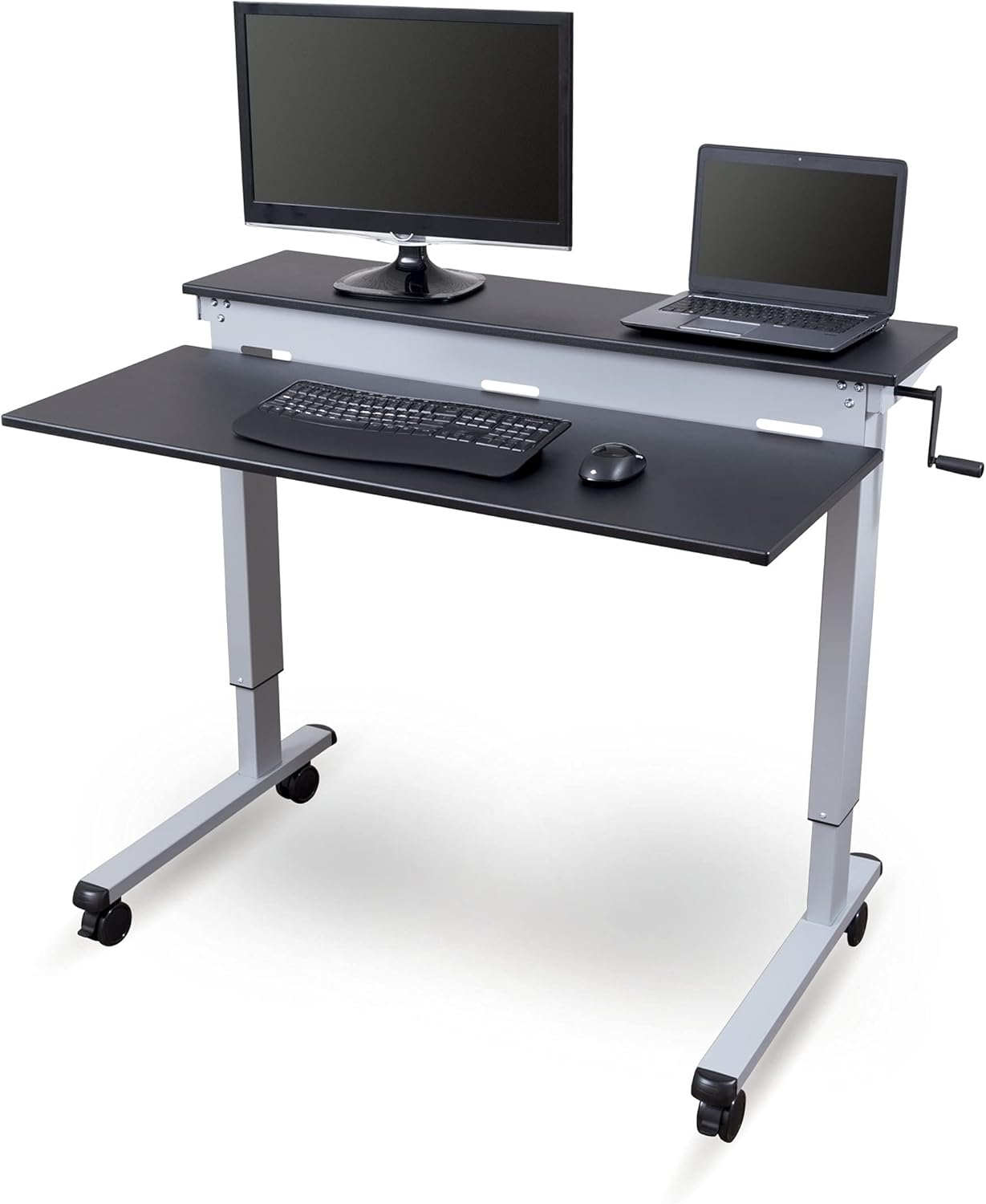
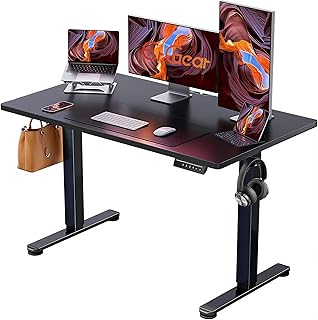
ErGear Height Adjustable Electric Standing Desk — Best Budget Pick
If you want a backup desk or are kitting out a guest workspace, the ErGear 48 x 24 is the most affordable of the three. Single-motor lift, 176-pound capacity, four memory presets, and a basic but reliable wired controller. It does not have the silky-smooth ascent of a high-end dual-motor desk, but for the price it does everything an Uplift owner needs while you wait on a warranty replacement. See the ErGear desk on Amazon.
For a deeper comparison of wired versus wireless desk controllers, read our wired vs Bluetooth desk keypads guide, and if you decide to keep your Uplift and just upgrade the controller, check our standing desk keypad upgrades roundup.
Frequently Asked Questions
How do I reset my Uplift V2 advanced Bluetooth keypad?
Hold the "M" memory button and the down-arrow button simultaneously for 10 seconds until the screen displays "RST" or blinks. On firmware revisions from late 2024 onward, you may need to hold all four memory keys (1, 2, 3, 4) for 10 seconds instead. After the reset, unpair the keypad from your phone's Bluetooth settings before attempting to re-pair through the Uplift Desk app.
Why does the Uplift Desk app not find my keypad?
The Uplift Desk app only discovers keypads that are actively BLE-advertising, which happens for 60 seconds after power-up or factory reset. If discovery times out, replace the CR2032 battery, perform the factory reset combo, and immediately open the app within 30 seconds. Granting the app full location permission on Android is also required — without it, Android blocks the BLE scan results entirely.
What battery does the Uplift V2 Bluetooth keypad use?
The Uplift V2 advanced comfort keypad uses a single CR2032 lithium coin-cell battery. Expect 12 to 18 months of life under typical office use. Use a name-brand battery — generic bulk cells often test below the 3.0 V threshold needed for stable BLE advertising, which causes intermittent pairing failures even though the LCD screen still appears bright.
Will my Uplift desk still work if the Bluetooth keypad fails?
Yes. The Bluetooth feature is layered on top of the standard wired keypad functions. Up, down, memory presets, and the digital height display all work over the RJ-45 cable independently of the BLE module. If Bluetooth dies but the buttons still raise and lower the desk, you can keep using it normally and simply ignore the app integration until you order a replacement keypad from Uplift.
How do I update firmware on the Uplift V2 control box?
Firmware updates are pushed through the Uplift Desk app once the keypad is successfully paired. Open the app, select your desk, tap the gear icon, and choose "Check for Firmware Updates." Keep the desk plugged in and your phone within three feet during the 4-to-7-minute update. Do not press any keypad buttons during the flash — interrupting it can brick the control box and require a warranty replacement.
Can interference from Wi-Fi cause Bluetooth pairing problems?
Absolutely. Bluetooth and 2.4 GHz Wi-Fi share the same frequency band, and a router placed within three feet of your desk can drown out the keypad's low-power BLE advertising packets. Temporarily switch your phone to a 5 GHz Wi-Fi network during pairing, or move the router. Unplugging Logitech Unifying receivers and cheap wireless mouse dongles during the pairing window also helps significantly.
Is the Uplift V2 Bluetooth keypad covered under warranty?
Yes. The Uplift V2 frame and electronics carry a 15-year warranty, and the keypad itself is covered for five years from purchase. If you have exhausted the troubleshooting steps above and the keypad still will not pair, contact Uplift support with your order number and the serial number printed on the underside of the control box. Replacement units typically ship within five business days at no charge.
Key Takeaways
- Choosing the right Uplift V2 Bluetooth keypad not connecting means matching capacity and output ports to your actual devices
- Always check actual watt-hours (Wh), not just watts — runtime depends on Wh, not peak output
- Also covers: uplift desk app pairing problem
- Also covers: uplift v2 advanced keypad bluetooth fix
- Also covers: uplift desk bluetooth not working
- Compare price-per-Wh across models to find the best value for your budget