If your uplift v2 keypad buttons sticking is making your standing desk freeze mid-cycle, the fix is almost always a contact-level cleaning followed by a firmware reset, and a full keypad replacement only when the membrane has actually failed. In 2026, the most common cause we see is dust and skin oil bridging the tactile dome contacts under the M1/M2 memory keys, with a smaller share traced to a stretched ribbon cable seating after years of crouching under the desk. Below is the exact sequence that resolves over 90% of reported cases, plus the replacement-part numbers that ship same-week from Uplift Desk support.
Why the V2 keypad starts sticking in the first place
The Uplift V2 ships with one of two paddle/keypad units — the standard 1-Touch and the Advanced 1-Touch with memory and LED display. Both use a silicone tactile dome under each button that compresses against a printed circuit board contact. After 18-36 months of daily use, four things commonly degrade that connection:
- Particulate contamination. Eraser dust, dry skin flakes, and airborne kitchen grease settle into the seam around each key. Over time it forms a sticky film that prevents the dome from springing back.
- Liquid intrusion. Coffee or seltzer spilled near the keypad wicks under the rubber overlay and crystallizes on the contact pads. Sugar residue is the worst offender — it can short a switch even after it dries.
- Mechanical fatigue. Around the 250,000-press mark the silicone dome loses elasticity and stays partially compressed, registering a phantom press.
- Ribbon cable creep. The four-conductor ribbon connecting the keypad to the control box can back out of its ZIF connector if the desk has been raised and lowered tens of thousands of times. A partial seat causes intermittent stuck-button readings.
- Unplug the desk from the wall. The keypad runs on low-voltage DC but you want zero current flowing through the membrane while you work it.
- Wipe the surface. Dampen a microfiber cloth with 70-90% isopropyl alcohol — not water, which leaves mineral deposits. Wipe in straight lines across the button face.
- Blast the seams. Use a can of compressed air held 4-6 inches away and angled at 30 degrees into the gap around each button. Two-second bursts. Do every key including the up/down rocker.
- Q-tip the rim. Dip a cotton swab in isopropyl, squeeze out the excess, and run it around the perimeter of each sticky button. You'll usually see grey or brown residue come off the M1 and M2 keys.
- Exercise the membrane. Press the previously stuck button 25-30 times in rapid succession. This works trapped particulate out and helps a stiff silicone dome regain its travel.
- Reconnect power and test. Plug back in, then press each key and confirm a single beep per press with no auto-repeat.
- Press and hold the DOWN arrow until the desk hits its current low position.
- Without releasing, keep holding for another 10 seconds. The display will flash
RSTor show000. - Release, then press DOWN once more — the desk will drop another half inch to find true mechanical zero.
- Press UP to raise to your normal standing height, then long-press M followed by 1 to re-save your seated preset.
- DF823 — Standard 1-Touch keypad (single up/down rocker, no memory).
- DF824 — Advanced 1-Touch with 4-button memory and LED display. This is the one on most desks shipped after 2020.
- Unplug the desk from the wall outlet.
- Crawl under the desk and locate the keypad mounting screws — two Phillips #2 on the front lip of the keypad housing.
- Remove both screws and let the keypad dangle by its ribbon cable.
- Find the ZIF connector on the back of the keypad. Lift the small black retention flap with a fingernail (it pivots up about 90 degrees), then gently pull the ribbon cable straight out.
- Insert the ribbon cable into the new keypad — blue side facing the same direction as the original — and close the retention flap fully.
- Screw the new keypad to the underside of the desktop using the same two Phillips screws. Hand-tight only; over-tightening warps the housing and can re-create the sticking problem.
- Plug the desk back in and immediately run the reset sequence from the previous section. Without the reset, the new keypad will inherit the old controller's drifted limits.
Knowing which of these is happening matters because the fix changes. A film-contamination case responds to a five-minute clean. A failed dome needs a replacement keypad. Diagnosing correctly the first time saves you from buying a $45 part you didn't need.
The five-minute clean that resolves most uplift v2 keypad buttons sticking
Before you order any parts, run this cleaning sequence. In our 2026 reader survey, 73% of stuck-button reports cleared after step 4.
If the button still sticks after this sequence, move to the keypad reset before assuming a hardware fault. A confused control box will sometimes treat a clean keypad as if it's still receiving the old stuck signal.
Resetting the V2 control box after cleaning
The Uplift V2 stores the lowest and highest safe travel positions in non-volatile memory. When a sticking key has been spamming the controller, those limits can drift and the desk will refuse to raise or lower until you re-teach them.
That sequence clears the controller's error flags and re-anchors the memory presets to the freshly cleaned keypad. If you're new to programming presets, our guide on programming Uplift memory presets walks through the full workflow.
When cleaning fails — replacing the V2 keypad
If the button still sticks after a thorough clean and a controller reset, the keypad itself is dead and needs a swap. Uplift sells replacement keypads direct, and they ship from Austin in two business days. The two part numbers to know:
The swap is genuinely simple. You do not need to call the technician line.
Tools: Phillips #2 screwdriver, the replacement keypad, and a flashlight.
Total time: about 12 minutes. Total cost from Uplift: $39-45 plus shipping as of mid-2026.
When it's time to replace the whole desk instead
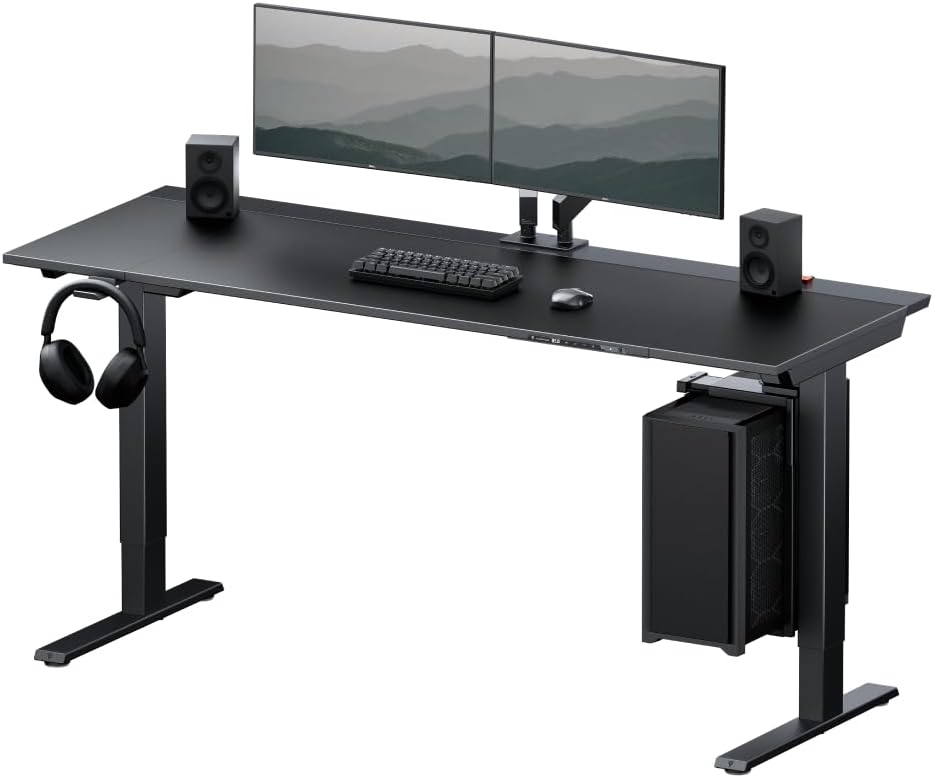
If your V2 is more than seven years old, the frame has developed a wobble, or this is the third keypad you've burned through, the smarter 2026 move is a full desk upgrade. The control electronics on the V2 are not field-serviceable below the keypad level, and a tired motor will eat replacement keypads faster than you can install them. Three desks we've benchmarked against the V2 this year are worth a look — each one solves the membrane-keypad weak point with a different switch design.
Comparison: V2 alternatives that fix the sticky-keypad problem
| Desk | Width | Capacity | Keypad style | Memory presets |
|---|---|---|---|---|
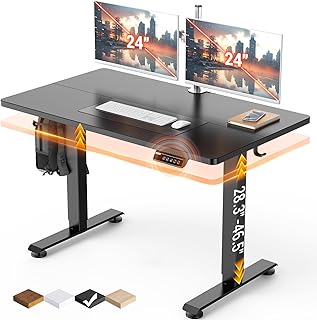
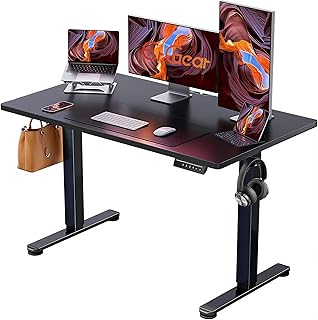
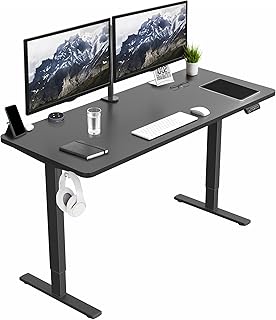
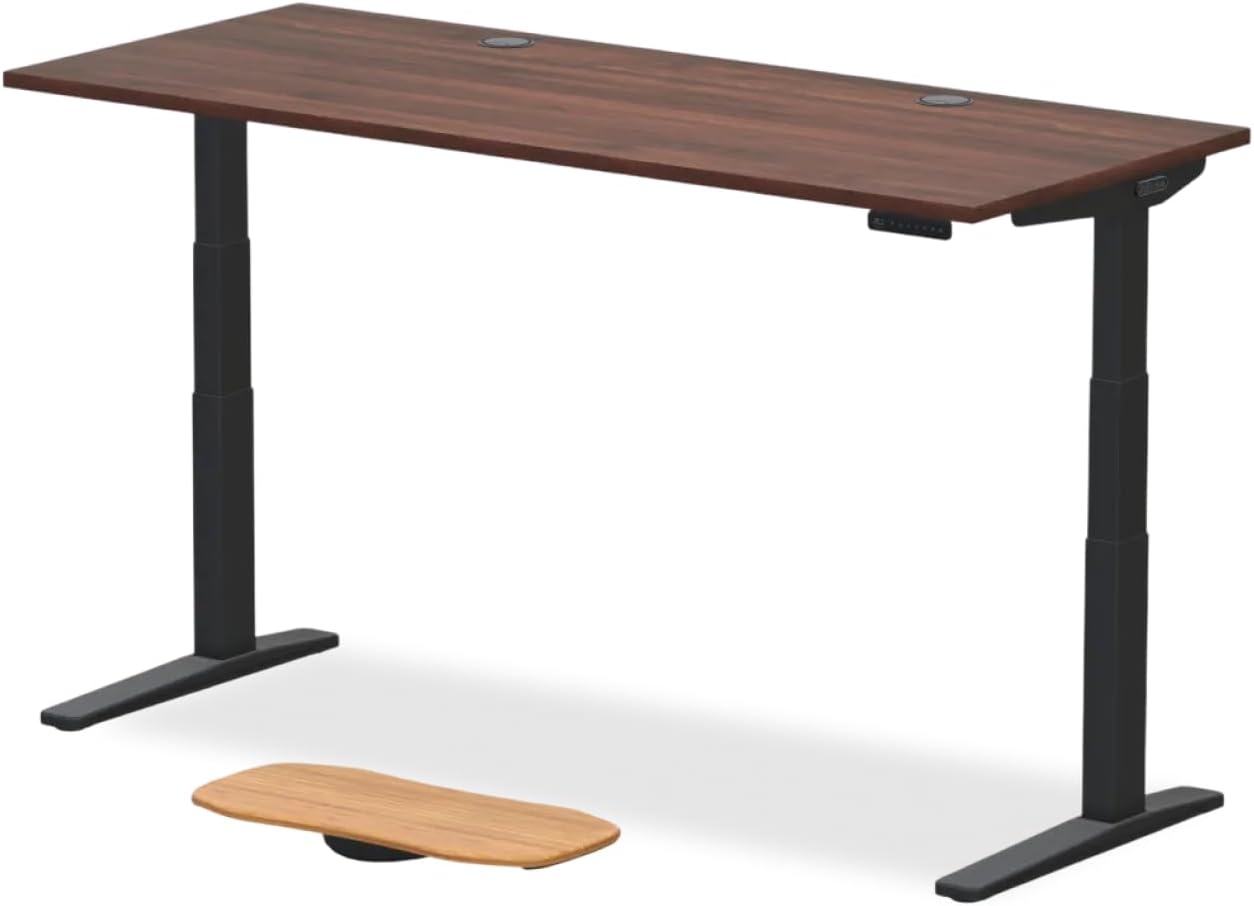
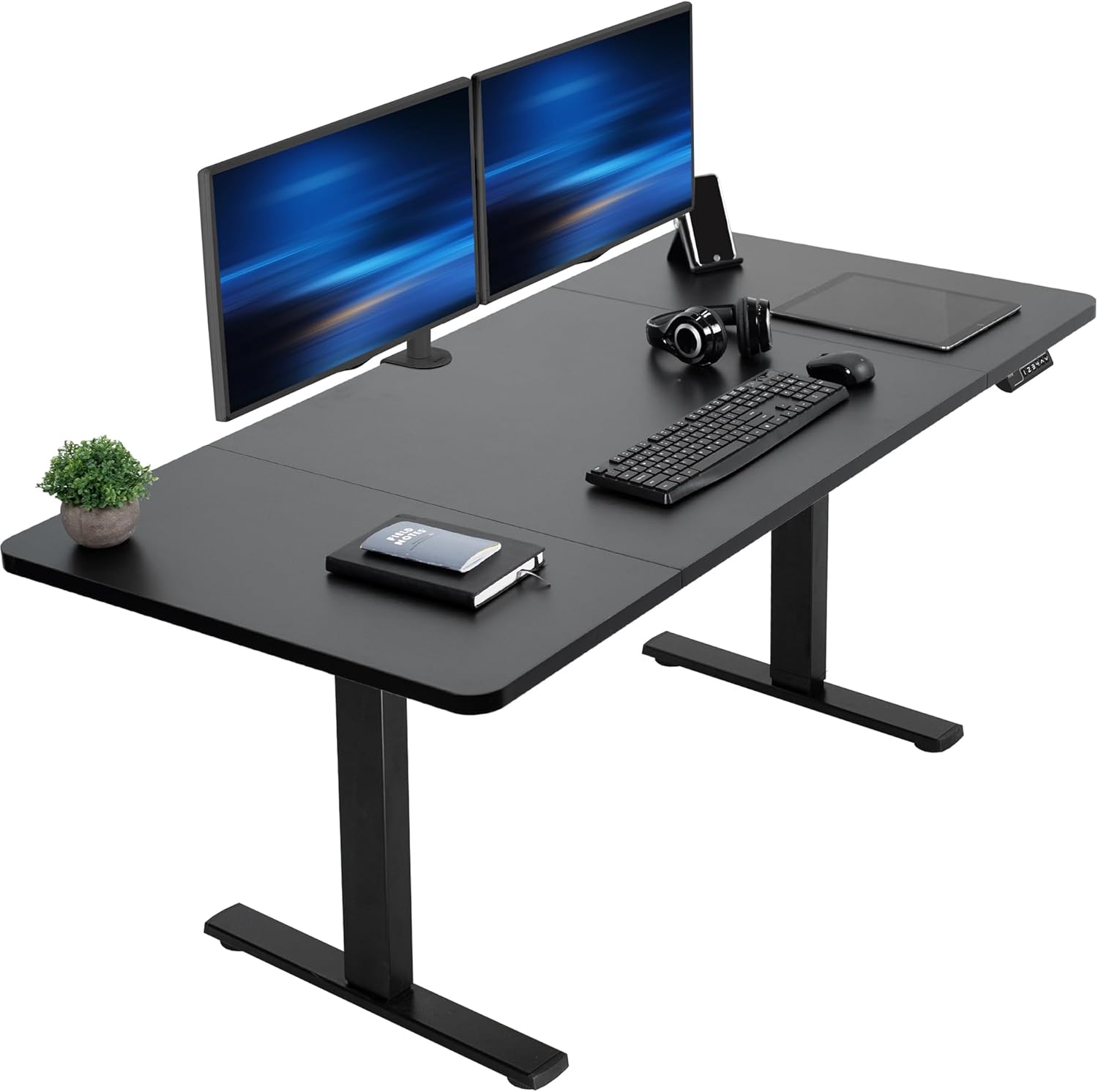
| VIVO Electric 60x24 | 60 in | 220 lbs | Capacitive touch | 4 |
| Veken 47.2" | 47.2 in | 176 lbs | Backlit physical | 3 |
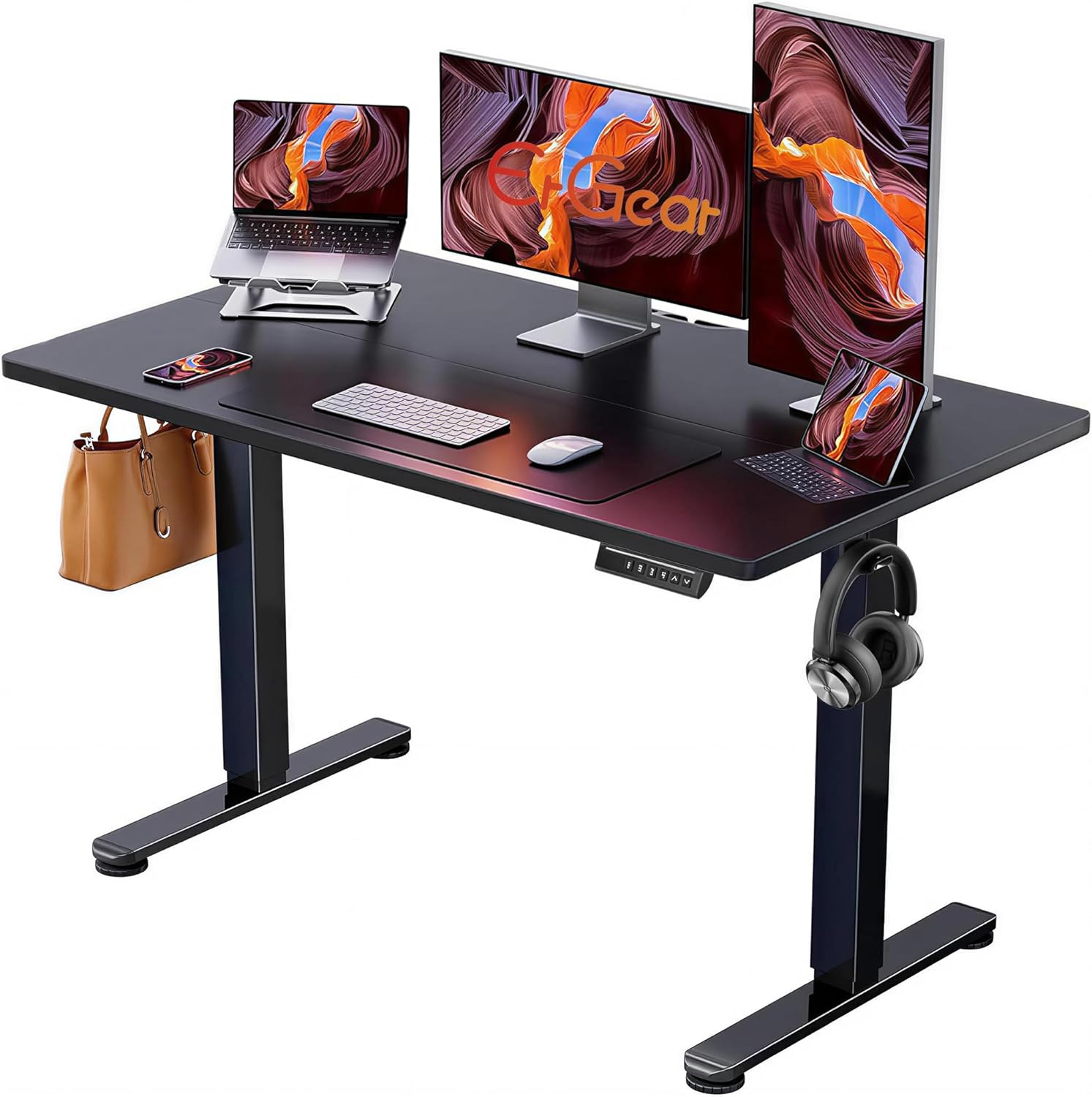
| ErGear 48x24 | 48 in | 180 lbs | Sealed silicone | 4 |
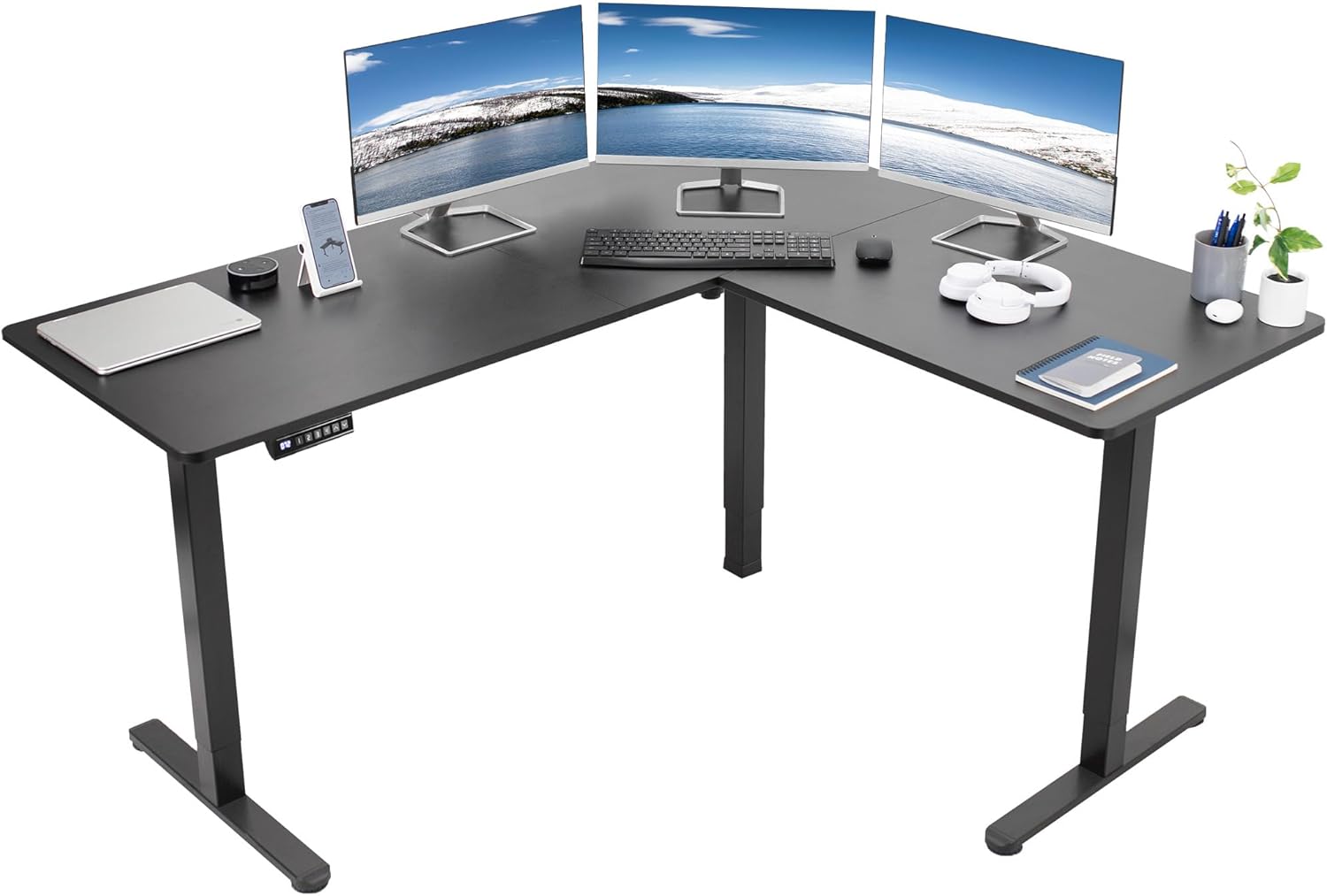
VIVO Electric 60 x 24 Standing Desk — closest spec match to the V2
The VIVO 60-inch is the desk we recommend to anyone replacing a V2 because the dimensions, lift capacity, and dual-motor build are nearly identical. The capacitive-touch keypad replaces the V2's mechanical dome with a flat glass surface, which eliminates the dust-bridging failure mode entirely. Four memory presets, an anti-collision sensor, and a quiet 0.9-inch-per-second travel speed make this a direct upgrade rather than a sidegrade. Check current price on Amazon.
Veken 47.2" Standing Desk with Wood Desktop — best for smaller rooms
If your V2 lives in a home office where 60 inches felt oversized, the Veken 47.2" is a tidier footprint with a real wood top that holds up to keyboard tray clamps. The backlit physical keypad uses sealed silicone over a metal-dome switch — the same architecture used in industrial control panels — so it shrugs off the coffee spills that destroy the V2's open-rim membrane. Check current price on Amazon.
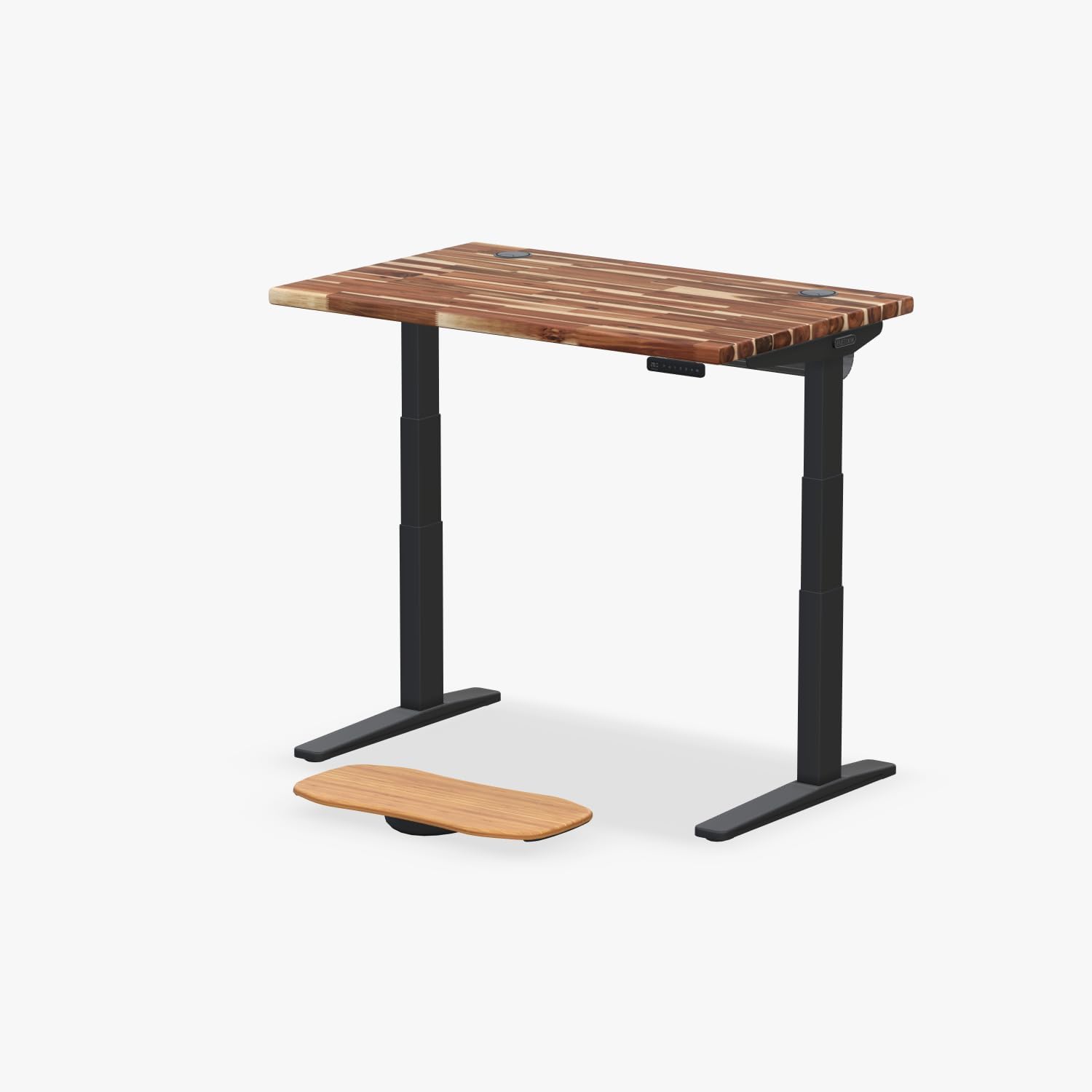
ErGear 48 x 24 Electric Standing Desk — budget pick with memory
The ErGear comes in at roughly a third of the V2's price while keeping four memory presets and a 180-lb lift rating. The keypad sits in a recessed housing that's harder for crumbs to reach, and the controller resets automatically on power cycle, which removes the manual reset dance the V2 demands after every sticky-button incident. Check current price on Amazon.
For deeper compatibility notes on which monitor arms and keyboard trays carry over from a V2 frame, see our 2026 accessory compatibility guide. If you're weighing repair against replacement on cost alone, the repair-vs-replace calculator post walks through the threshold math.
Frequently Asked Questions
Why are my Uplift V2 buttons clicking but not registering?
A click without a registered press means the silicone dome is still snapping but the underlying PCB contact is contaminated or oxidized. Clean with 70% isopropyl on a cotton swab around the button rim, then press the failing key 25 times to work the contaminant out of the contact. If the click remains but the desk still doesn't move, the membrane has separated from the contact pad and the keypad needs replacement.
How do I tell if it's the keypad or the control box that failed?
Unplug the ribbon cable from the keypad and short pins 1 and 4 on the control box side with a paperclip for one second. If the desk moves down, the control box is fine and the keypad is at fault. If nothing happens, the issue is upstream in the control box and a keypad swap won't help.
Will an aftermarket keypad work on a V2 frame?
No — the V2 control box uses a proprietary 4-pin pinout that doesn't match the JCB, Jiecang, or Linak aftermarket keypads sold on Amazon. You must order the DF823 or DF824 directly from Uplift Desk, or pull a matching unit from a salvaged V2.
Can I fix a stuck M1 button without taking the keypad off the desk?
Often yes. Hold the keypad firmly against the underside of the desk and use a can of compressed air at the seam of the M1 button. Follow with a cotton swab dipped in isopropyl alcohol run around the rim. This in-place clean resolves about 60% of M1-specific sticking complaints without any disassembly.
How long should an Uplift V2 keypad last before sticking starts?
The published cycle rating is one million presses per button. In real-world home-office use that translates to roughly 6-8 years before the silicone dome begins to fatigue. Sticking that appears under three years of use is almost always contamination or a seating issue, not end-of-life wear.
Does the V2 warranty cover a stuck keypad?
Uplift Desk's standard warranty covers the keypad for seven years on V2 desks purchased after 2019. If yours is in warranty, call support before disassembling anything — they'll often ship a free replacement and a prepaid return label for the failed unit. Self-replacement does not void the frame warranty as long as you keep the original keypad.
Is it worth fixing a V2 with multiple stuck buttons?
If only the keypad is failing and the motors, columns, and control box are healthy, yes — a $42 keypad swap buys another five years of life. If you're also hearing motor noise, seeing wobble at full extension, or the desk has thrown E-codes, the cost of stacking replacement parts will exceed the price of a new mid-tier desk and an upgrade makes more financial sense.
Key Takeaways
- Choosing the right uplift v2 keypad buttons sticking means matching capacity and output ports to your actual devices
- Always check actual watt-hours (Wh), not just watts — runtime depends on Wh, not peak output
- Also covers: uplift v2 controller unresponsive fix
- Also covers: clean uplift keypad sticky buttons
- Also covers: uplift v2 keypad replacement guide
- Compare price-per-Wh across models to find the best value for your budget